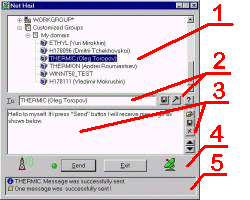
Screen view and definitions.
Main screen of the program consist of a few parts:
|
1.The List of computers shows your network neighborhood and customized groups that you or network administrator has created. You can select one or more computers or workgroups as a list of addressees. You can use the double click on a workgroup to expend or collapse it. You can use the right button to perform special actions on the List of computers.
2.The Addressee box is a "To:" box where you 
can see to what computer the message will be sent. The Save button next to it will allow you to save the selection or multiple selections as a customized group.
3. The Message box is below the Addressee box. You can type the message you want to send in the box. The set of buttons left of the message box allows you to open previously saved message or to save a message for future use. Also, you can clear the message box or scroll through recently sent messages.
4. The rest of the buttons are very obvious. The "Send" button will send the message to the selected addressees. The "Exit" button will close the program. The "Set Options" button will open the Options Dialog and "About" button will show the About Dialog.
5. The Status List is showing the current status of the program. For example, when program is busy you will see "clock" sign  and words "Please wait".
If you send message and network error is happened the program will show "Stop" sign  and explanation of the error. You will see "Information" sign
  if message was sent successfully. "Exclamation" signs
  usually mean warning, non-critical errors. When you send message to few computers you will see "Report" sign
  with statistical information: how many messages you have tried to send and what part of it was successful.